Once a shift has been created you have the option to review the details of the shift, edit the details and even cancel a shift.
Review, edit or cancel your shift(s)
1. Begin by clicking on shift card from the Dashboard or Shifts calendar to view the shift details.
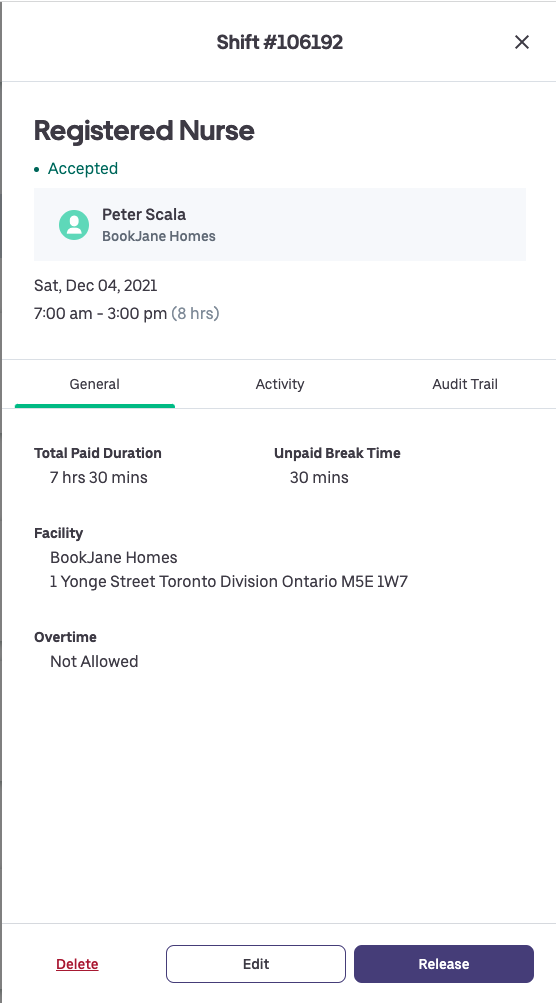
2. Click on Edit to make any changes to the shift: all shift details may be edited with the exception of Position and Community (location).
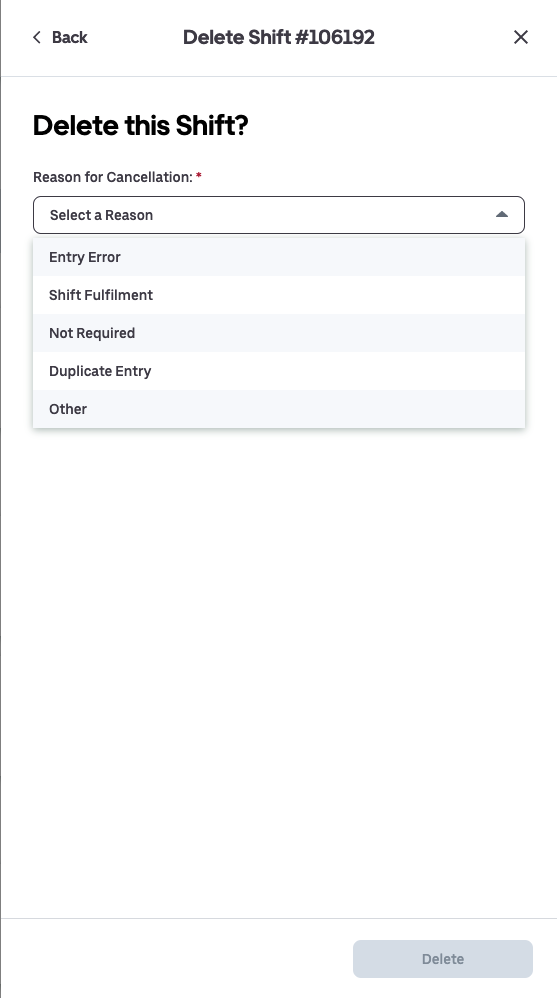
3. Click on Save to finalize the booking, Release to release the team member from the shift (shift gets reposted as an open shift, for more details on releasing a team member from a shift click here) or Delete to delete the booking (you will be prompted to select a reason for cancelling the shift).
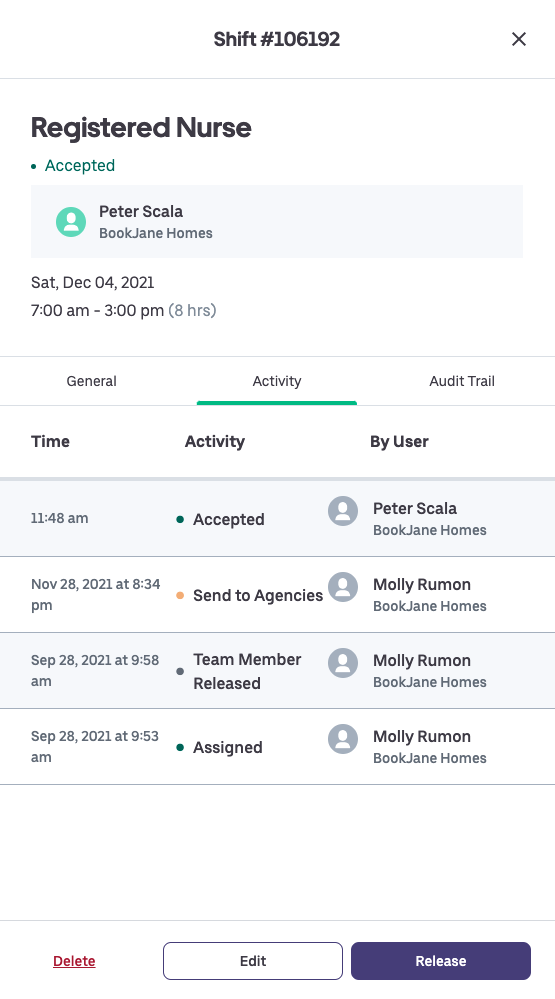
Activity
In the Activity tab, you can observe every action that occurred for that shift including shift creation, edits, acceptances and cancellations (if applicable).
Audit Trail
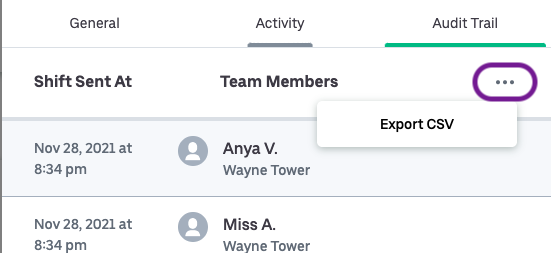
In the Audit Trail you can review when and who the shift was shared with.
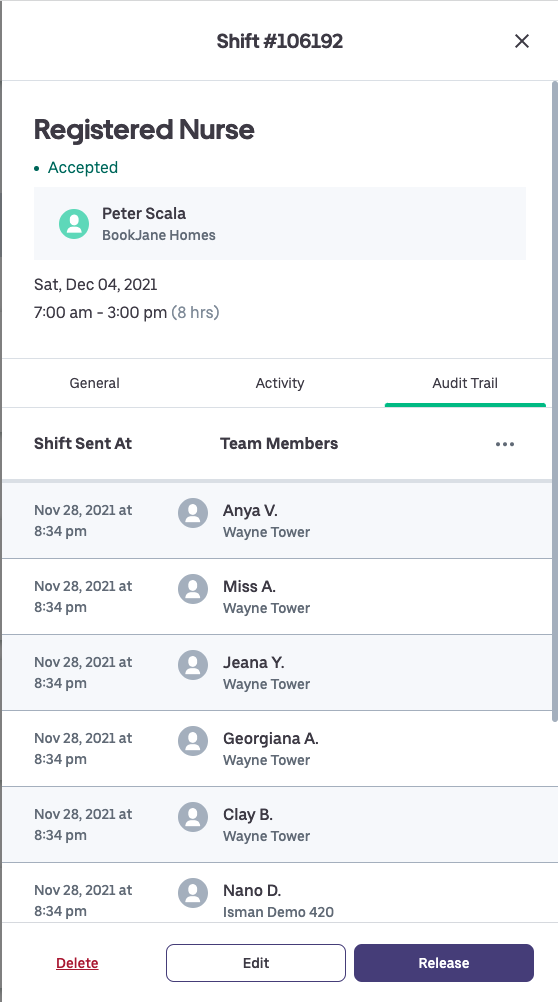
You may also export the audit trail using the ellipsis (located below the Audit Trail header)