BookJane's availability feature to collect your team's availability over a customizable period. When shifts are created, BookJane will prioritize your available team members and contact your unavailable team members after.
- Shifts will go through your available pool first and then your unavailable pool
- Seniority rules are still applicable when Availability is turned on
- availability settings are managed at the facility level
Collecting availability
1. Contact your customer success manager to turn on availability for your facility
2. Navigate to the Settings tab then click Facilities
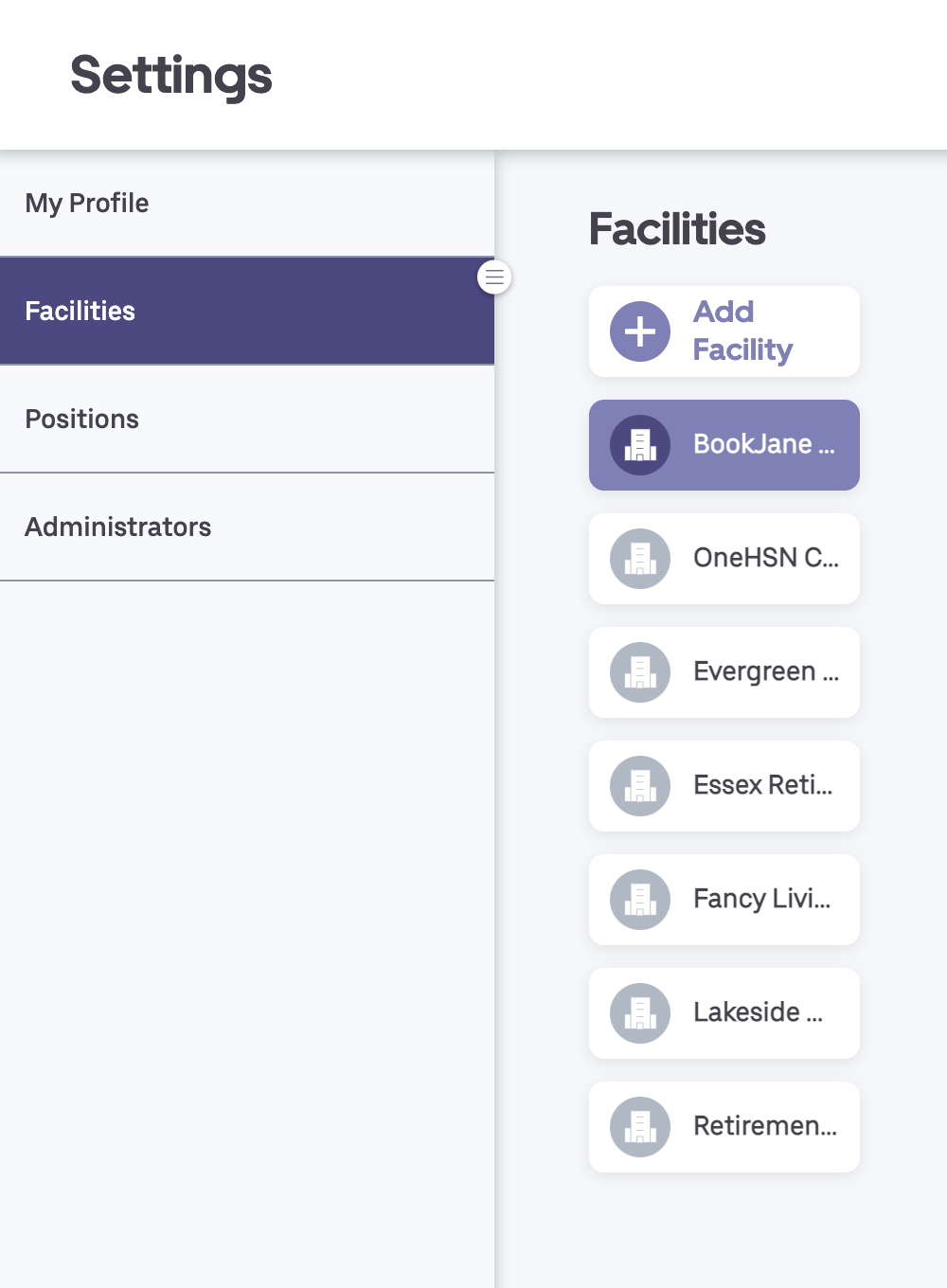
3. Review the Availability tab
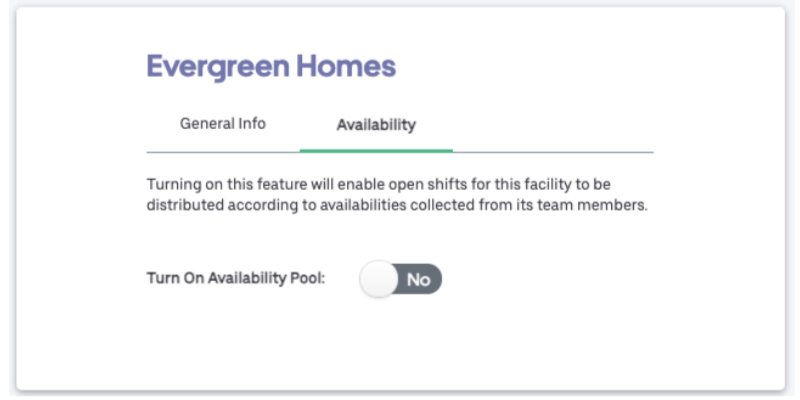
4. Switch the Turn on Availability Pool toggle to the Yes position.
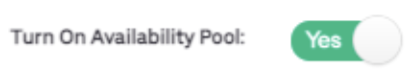
Note: Once this feature is turned on and team members begin submitting their availability, if the feature is then turned off, the facility will lose any availability that was submitted.
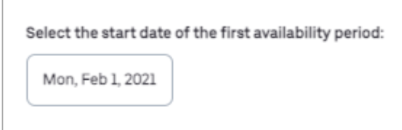
5. Select the start date of the first availability period: team members will provide their availability from the date selected to the date that the availability period ends.
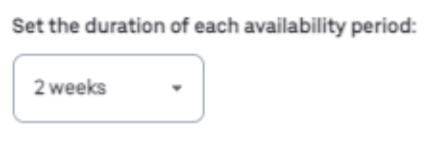
6. Set the duration of each availability period: the duration can be 1, 2, 3 or 4 week periods.
7. Set the deadline for availability submissions: this setting marks when your staff must submit their availability by to be considered in the next pool.
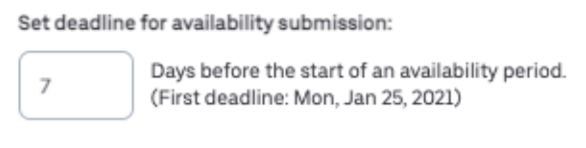
Note: if team members miss the deadline, they will be automatically sorted into the unavailable pool. Meaning they will receive the shift after its been offered to all team members in the available pool for this time period.
8. Include non-mobile users in available pool: your non-mobile users will not need to provide availability. Turning this feature on will automatically include non-mobile users the in available pool for all posted shifts. Non-mobile users will receive and can accept shifts as they would normally.

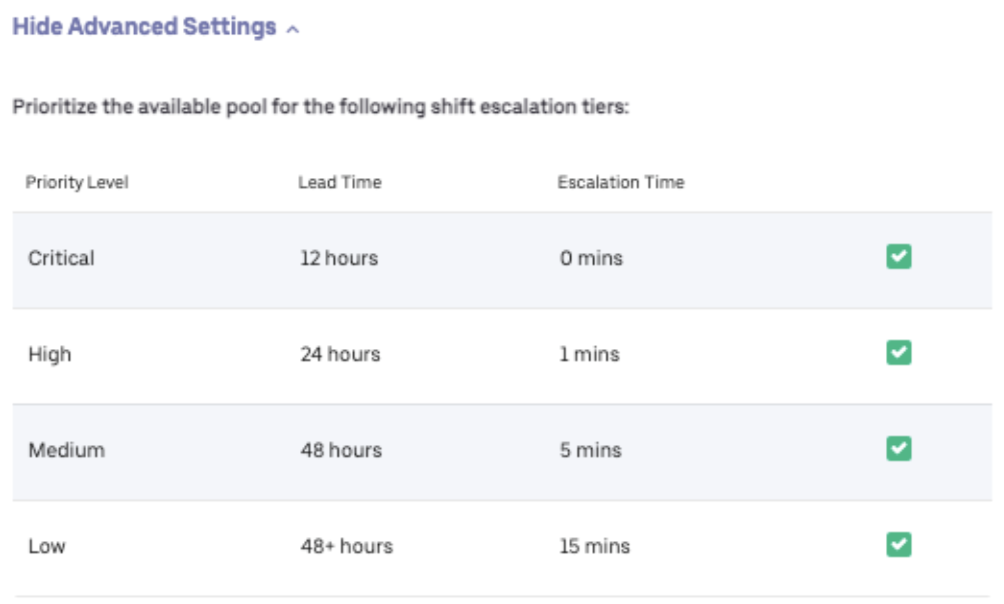
9. Select View Advanced Settings to prioritize the available pool according to shift escalation rules.
Note: ignore this section if you have not set up shift escalation rules at your facility.
Select the priority levels you want following availability rules. If you deselect a priority level, this means the shift will ignore the availability pool. The shift will be released to all team members following your facilities seniority rules.
10. Apply the same availability settings to other facilities. If you manage multiple facilities, you are able apply these settings to other facilities. If different settings are required, please go to Settings > Facilities to select on the other facility to repeat these steps.
11. Finally, click Save

Note: once the feature is on and team members begin submitting their availability, if the feature is turned off, the facility will lose any availability that was submitted.