Save time by creating master schedule template(s) that you can both share and use in the future. Templates can be created for individuals, a few team members, or even your entire team!
Create a Template
1. Begin by creating a schedule of draft shifts
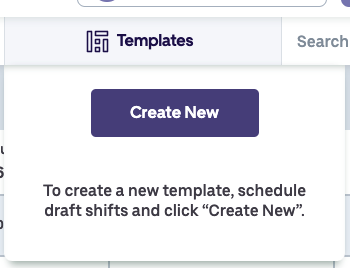
2. click on Templates in the top menu bar
3. Click on Create New
4. Name your template, mark it as Private (only you can see this template) or Shared (any administrators on your account can see and apply this template) and press Save to save your schedule as a template.
Congratulations! You now have a saved template.
Applying a Template (I created)
1. To apply a template of draft shifts, go to the week(s) that you wish to apply the schedule.
2. Click on Templates.
3. Locate the template you wish to apply and click on Apply to apply the template to the week(s) you are currently viewing.
Note: you are applying a template of draft shifts. Publish your schedule to assign the shifts and make the schedule live.
To learn how to apply a template that was shared with you click here.